
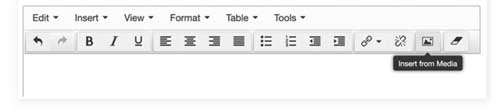
Use ‘Insert from Media’ icon
When adding links to PDFs, Excel spreadsheets or Word documents into your content in T4, always use the Insert from Media icon in the WYSIWYG editor, as shown below.
When you use this method to insert a document from the Media Library, T4 automatically publishes the document to our web server, allowing everyone to see it.
DO NOT hardcode links to files copied directly from a web browser.
For example, avoid copying a URL from another page which would look like this:
www.exeter.ac.uk/v8media/recruitmentsites/documents/degreeapprenticeships/DA_Healthcare_Brochure.pdf
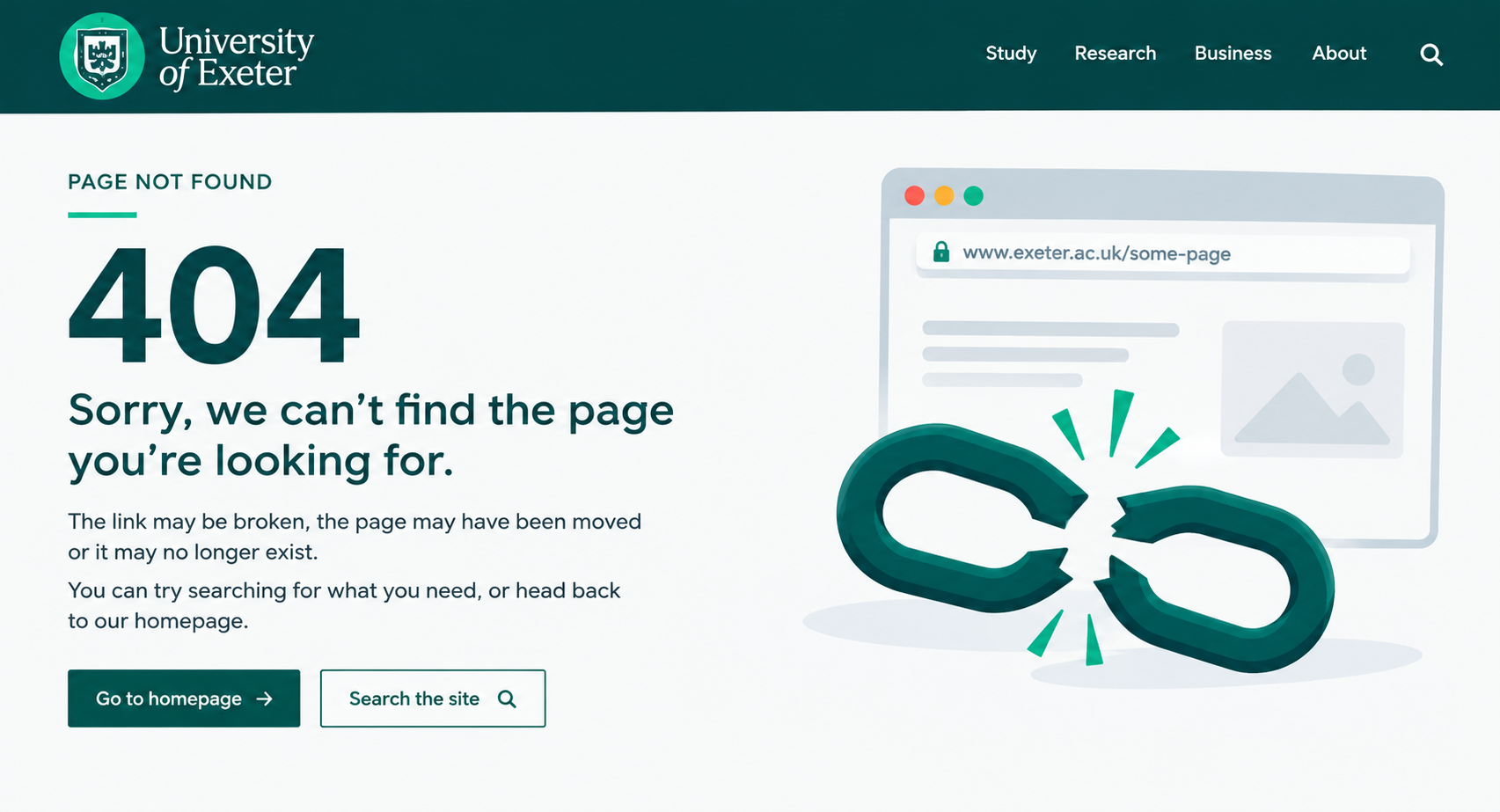
If the original page containing the hardcoded link is removed from T4, the associated file may also be removed from the server. This would leave a broken link to the media on your webpage, resulting in a 404 error*.
Using the Insert from Media icon helps ensure that files are managed correctly through T4 and reduces the risk of broken links.
Bonus tip – media titles
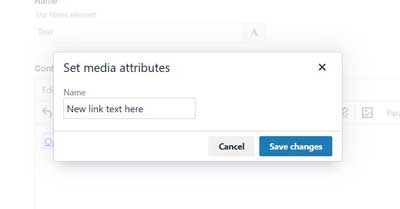
When you select a document from the Media Library, T4 automatically inserts the media item’s name as a link to the file.
You can change the link text if needed. Double click on the link and type in the text you require.
More information
- How to write good link text
- How to add a link in T4 (T4 registered users only)
- Web accessibility training
Glossary
*A 404 error (or “404 Not Found”) is a standard HTTP status code that means a web browser was able to communicate with a web server, but the server could not find the specific page or file requested