
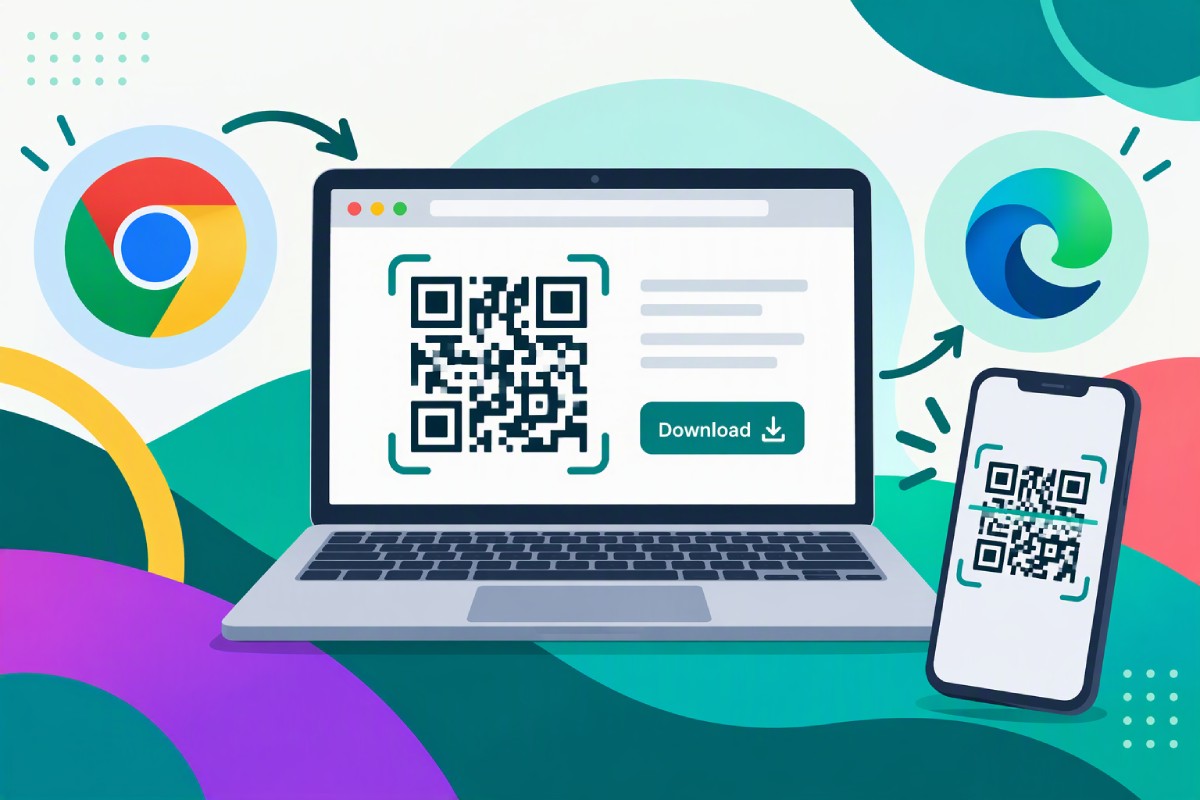
QR codes have become a simple and effective way to connect printed materials with online content. Whether you’re promoting an event, sharing a webpage at an open day, or adding links to posters and flyers, QR codes can help users access information quickly using their mobile devices.
The good news is that you don’t need specialist software to create them. Modern web browsers include built-in QR code generation tools that can create a QR code in seconds.
Why use QR codes?
QR codes can be useful for:
- Event posters and banners
- Open days and recruitment activities
- Printed guides and brochures
- Conference materials
- Digital signage
- Sharing webpages during presentations
Instead of typing a long web address, users can simply scan the QR code using their phone’s camera.
Creating a QR code in Google Chrome
Google Chrome includes a built-in QR code generator for webpages.

On Windows or Mac
- Open the webpage you want to share.
- Click the Share icon in the address bar (or right-click on the page).
- Select Create QR Code.
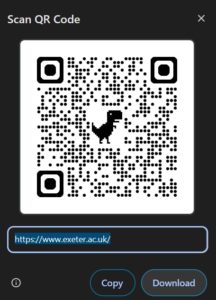
- Chrome will generate a QR code for the page.
- Select Download to save the QR code as an image.
The image can then be added to posters, presentations, emails or printed materials.
Top tip
Always test your QR code with a mobile phone before publishing or printing it to make sure it points to the correct webpage.
Creating a QR code in Microsoft Edge
Microsoft Edge also includes a built-in QR code generator.
On Windows or Mac
- Open the webpage you want to share.
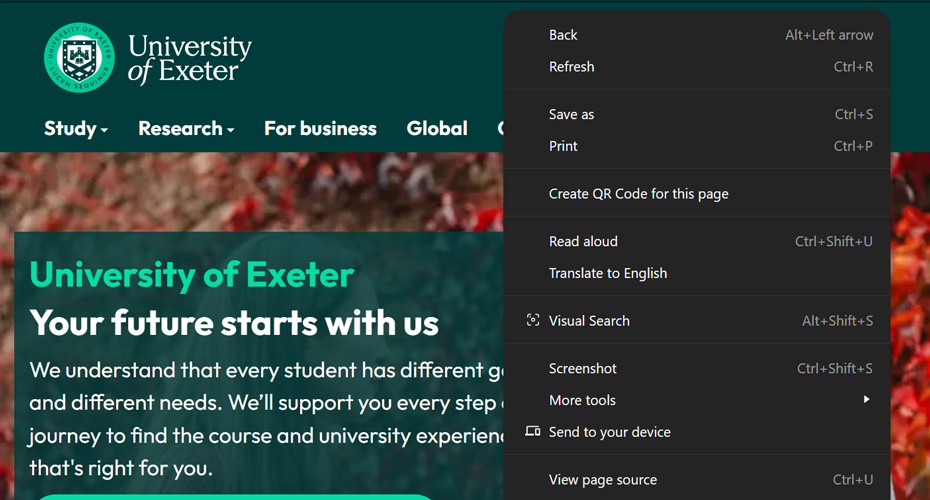
- Right-click anywhere on the page.
- Select Create QR code for this page.
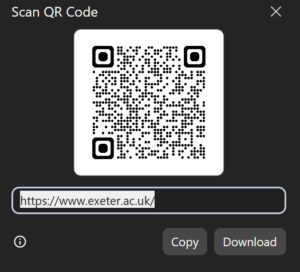
- Edge will display a QR code linked to the current webpage.
- Select Download to save the image.
The QR code can then be reused in digital or printed communications.
Good practice when using QR codes
Link to mobile-friendly pages
Most users will scan QR codes using their mobile devices, so check that the destination page works well on smaller screens.
Use short URLs where possible
Although browsers can generate QR codes from any URL, shorter web addresses generally create simpler QR codes that are easier to scan.
Provide an alternative link
Not everyone uses QR codes. When possible, include a web address alongside the QR code so users have another way to access the information.
Test before publishing
Before distributing printed materials:
- Scan the code with different devices.
- Check it loads the correct page.
- Confirm the webpage is publicly accessible.
- Ensure the page has not been moved or deleted.
When QR codes work best
QR codes are most effective when they bridge the gap between physical and digital content. For example:
- A conference poster linking to event registration.
- A campus sign linking to visitor information.
- A presentation slide linking to further resources.
- A leaflet linking to an application form.
Used thoughtfully, QR codes can provide a quick and convenient way for users to access online information without typing lengthy web addresses.