
When we talk about PDF accessibility, it’s often the small details that make a big difference. One of those details is ensuring your PDF has an embedded document title.
A document title helps people using assistive technologies understand what a PDF contains before they start reading it. It also improves the experience for anyone opening the file in a PDF reader, where a meaningful title is far more useful than a filename such as final_v3_approved.pdf. The University’s web accessibility guidance requires non-exempt PDFs published on our websites to include an embedded document title.
Why does a PDF title matter?
An embedded PDF title is separate from the filename. Screen readers and PDF viewers can use this metadata to identify the document and provide a clearer experience for users. A title such as Undergraduate Open Day Guide 2026 is much more informative than a generic filename.
Adding a title is one of the quickest accessibility improvements you can make to an existing PDF and can often be completed in less than a minute.
Before you start
Before making changes to a PDF, check whether the document is exempt from accessibility requirements or whether there are any restrictions on editing it, such as Design Studio, third-party, password-protected or digitally signed PDFs.
Full details and exceptions can be found in the University’s guidance on adding or editing a document title in an existing PDF.
Using ABBYY FineReader to add a PDF title
ABBYY FineReader PDF is available for University-owned Windows devices through the Company Portal and provides a simple way to update PDF metadata without requiring an Adobe Acrobat Pro licence.
Follow these steps:
1. Open the PDF
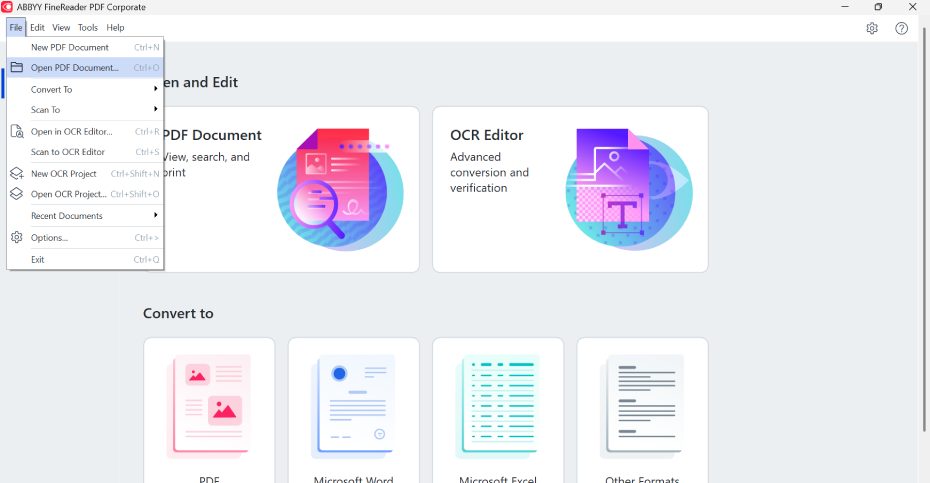
Launch ABBYY FineReader PDF and open the document you want to edit.
2. Open Document Properties
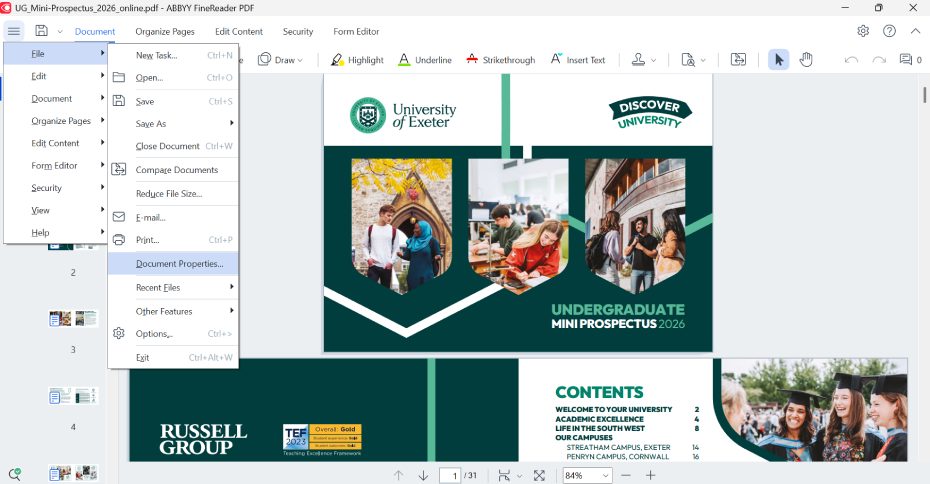
Select the Main Menu (the hamburger menu in the top-left corner of the application).
Navigate to:
File → Document Properties…
3. Enter the document title
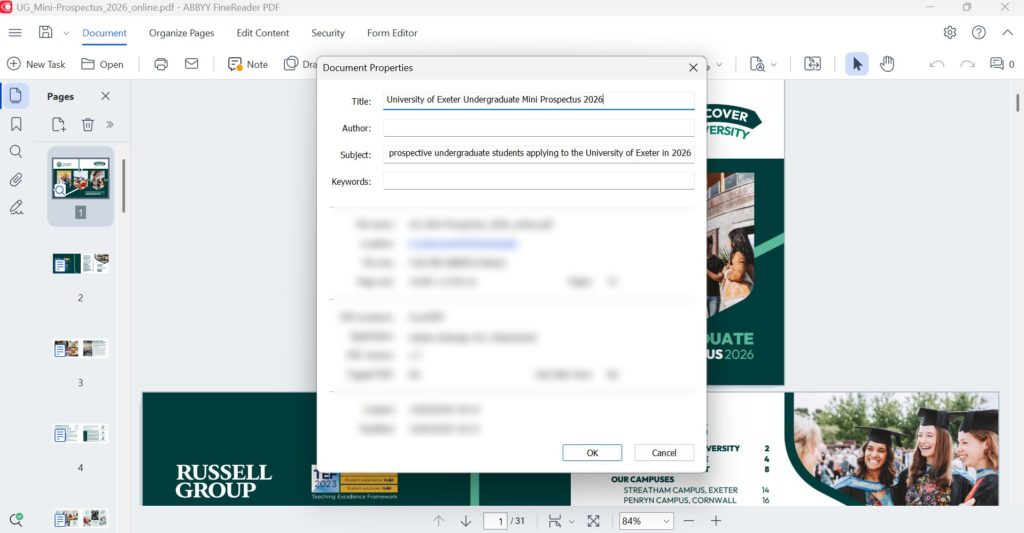
In the Document Properties window:
- Enter a meaningful title in the Title field. Example “University of Exeter Undergraduate Mini Prospectus 2026”.
- Optionally add information to the Subject field.
Click OK when finished.
4. Save the document
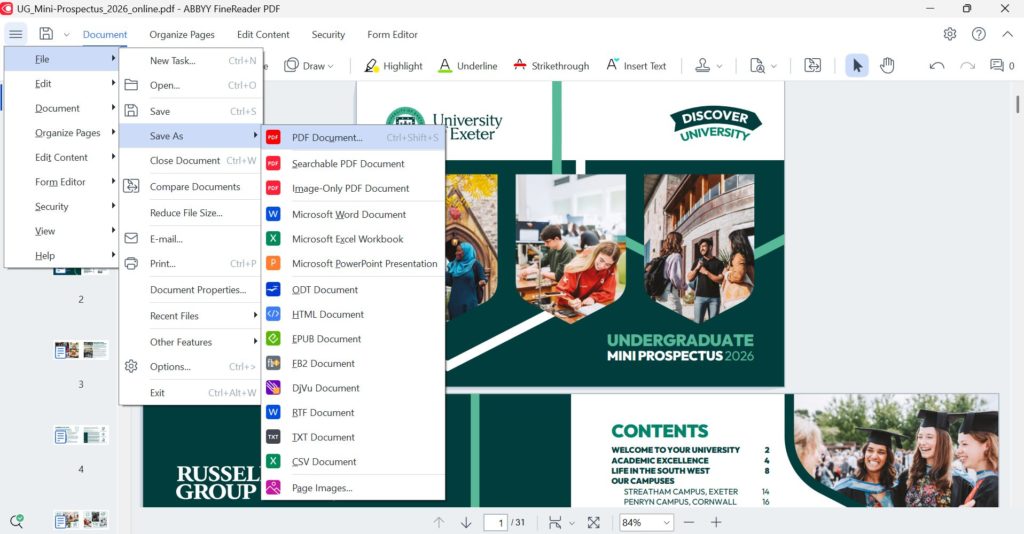
You can either:
- Click Save to overwrite the existing file, or
- Select File → Save As… → PDF Document to create a new copy.
5. Preview document in browser
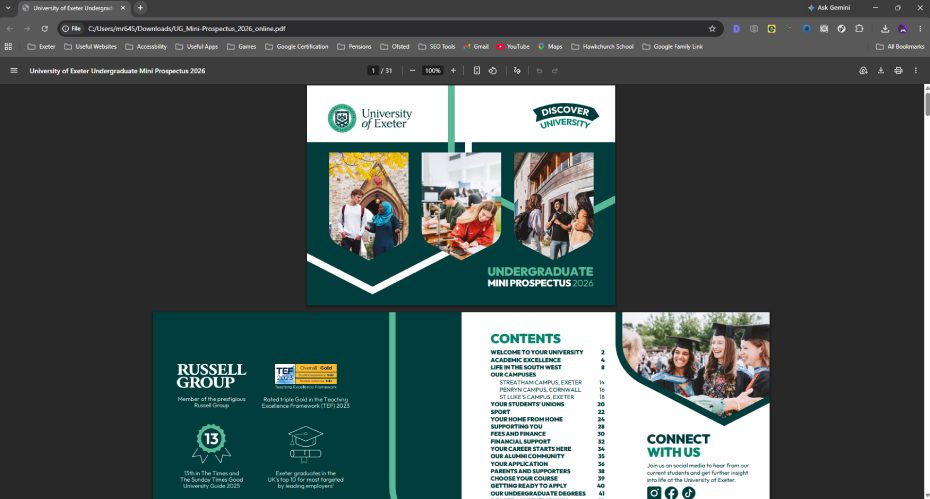
Once saved, your PDF should now include the updated title metadata.
Don’t forget to check your work
After saving, it’s worth verifying that the document title has been successfully embedded. Most PDFs save correctly, but occasionally older or unusually structured files can cause issues that prevent metadata from being written successfully. If you encounter problems, contact the Web Team for advice.
A small change with a big impact
Accessibility improvements don’t always require extensive remediation work. Adding a document title is a straightforward task that improves usability for screen reader users and helps us meet our accessibility obligations.
If you’re publishing PDFs regularly, make checking for an embedded title part of your normal workflow. It’s a quick win that helps make University content more accessible for everyone.
Need more help?
For more guidance on accessible PDFs and document accessibility, visit:
These pages contain practical guidance, training materials and accessibility best practice to support your web publishing.