
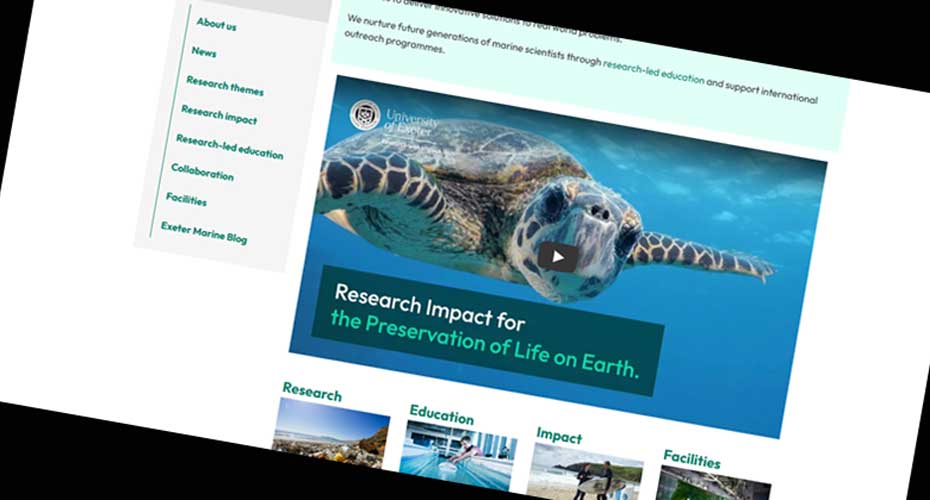
Using videos on your page can really help bring the content to life and are a great way to really show what life is like on campus or illustrate your research.
Storing video content
Video can’t be uploaded directly to the T4 Media Library. Video files are large and would slow your page down.
To insert a video on your page, the video needs to first be uploaded to YouTube or Vimeo.
Please use this form to submit video content to the Digital Image and Video Curation officer.
Ensure you provide as much relevant information as possible to support the upload process. Please note: All submissions will be reviewed to ensure they meet the University’s brand guidelines, accessibility requirements, and quality standards.
Embedding the video into a web page
Once loaded to a video sharing platform the video can be added a web page using a template that has a video field. DO NOT paste raw embed code directly into text fields.
If your site uses the new recruitment templates the Panels template is the best way to add a video into your page. These are designed to be fully accessible and responsive to different screen sizes and devices. You can set varying widths, add captions, links and headings.
Finding the video ID
To add a video, you’ll need the video ID from the URL.
YouTube
The YouTube ID is the code that appears after the = sign in the URL.
For example: https://www.youtube.com/watch?v=BUN0sSa2e9c
The video ID is: BUN0sSa2e9c
Vimeo
The Vimeo ID is the code that appears after the final / in the URL.
For example: https://vimeo.com/1187735069
The video ID is: 1187735069
There is also a mandatory field for Video alt title. This should be a short explanation about the video. This value will appear as the title on the video on your webpage.
Any questions please email digitalteam@exeter.ac.uk